Best free AI tools for content creation
An AI draft is a starting point, not a finished asset. Here are eight free tools on PhotoCraft Online for editing the images, words, videos and slides you want to publish.
If you are looking for the best free AI tools for content creation, first separate generating a draft from editing it into something usable. A generated picture may still need the right dimensions. A script needs revision. A slide needs a readable layout.
The tools below cover that editing stage. They are not AI generators: these hosted browser builds do not provide a site-funded chatbot, text-to-image service or automatic video generator. You can use them with assets made elsewhere, but the work described here is manual editing. Any external AI service has its own pricing, privacy rules and usage terms.
Which free tool fits your next piece of content?
Choose by the file you need at the end, rather than opening every editor:
- A blog image or thumbnail: PhotoCraft for layers and resizing, or LightCraft for photo exposure and color.
- An SVG illustration: VectorCraft for editable paths, shapes and artboards.
- A short video: FilmCraft for a timeline and titles; test a short export before building the full sequence.
- A motion composition or still frame: EffectCraft, with limits on Lottie export.
- An article draft or script: WordCraft for text editing and a downloaded DOCX.
- A page-based visual: DesignCraft for text and image frames, with PNG page export.
- A presentation: DeckCraft for slide composition and a native deck file.
All eight workspaces are free to open without a site account. They are alpha or pre-alpha software, not finished replacements for every professional workflow. The recommendations below stick to the editing and save paths checked for the versions hosted here.
1. PhotoCraft: prepare blog images and thumbnails
Use PhotoCraft when you have an image but need a different crop, pixel size or layered composition. It is the most direct starting point for a blog cover, an illustration inside an article or a thumbnail assembled from existing assets.
Open a local PNG or JPG, make your edit, then download a finished PNG. Image → Image Size changes the actual dimensions; zooming the canvas does not. If you need to return to supported editable layers, keep a PSD separately from the finished image. Our crop and resize guide and save and export guide cover those steps.
Know the limit: PhotoCraft v0.7.0 is early alpha. Complex PSD effects and fonts may differ, and the Web build has no autosave or crash recovery. It does not turn a text prompt into an image for you.
2. VectorCraft: draw scalable illustrations and graphics
Use VectorCraft for an SVG illustration, an icon or a shape-based graphic that you want to resize later. Its paths, shapes and artboards suit clean diagrams and reusable visual elements better than painting everything into a raster image.
Start a drawing or open an SVG, adjust the artwork, then keep both a native project and an exported SVG. Those are different deliverables: one is your editing file, while the other is the graphic you can place in a compatible page or design tool.
Know the limit: The hosted v0.10.0 build was checked for SVG import, moving a shape, native save and SVG export. That does not establish compatibility with every SVG filter, font or Illustrator effect. Affinity import is read-only. This is a manual vector editor, not a prompt-to-logo service.
3. LightCraft: adjust photos before publishing
Use LightCraft when your content starts with a photograph and the main job is exposure, shadows or color. It is a focused choice for improving a photo before using it in a post, newsletter or slide.
Import the photo, select its thumbnail, adjust the editing controls and export an image. Exposure and shadow changes were checked in a downloaded JPEG, so you have a practical path from an edit to a file you can publish. Keep your original alongside that result.
Know the limit: Some RAW variants use embedded JPEG previews rather than full RAW development. Upstream lists WebGPU and Safari/Firefox testing as work in progress for this release. Browser-local persistence is not a backup. Do not assume automatic AI enhancement or support for every camera file.
4. FilmCraft: assemble a short video with titles
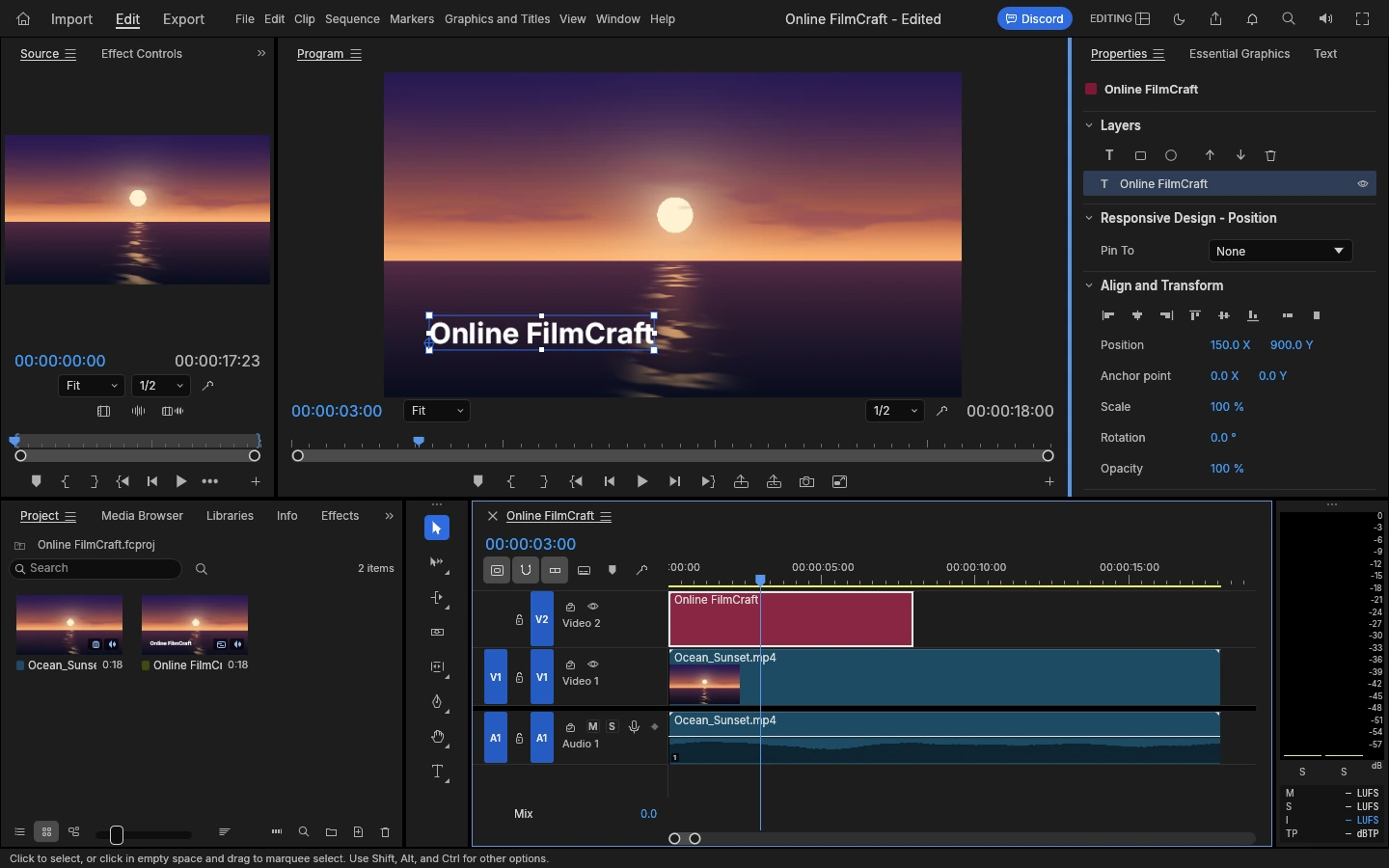
Use FilmCraft to arrange media on a timeline, add a title and preview a sequence. For a creator with an existing image or footage, this is the editing stage after planning the story or generating source assets elsewhere.
Import your media, place it in a sequence and review the timing in the program monitor. Save a project, then export a short sample and play the downloaded file before committing to a longer production.
Know the limit: A one-second image-and-title H.264 MP4 was exported and decoded in testing of v0.7.2. That narrow result does not establish reliable long-video editing, every browser codec or audio export. Keep the source media as well as the project. FilmCraft is not a text-to-video generator.
5. EffectCraft: experiment with motion graphics and title frames
Use EffectCraft when your content needs a layered composition, an animated title experiment or a still frame from a timeline. It provides a separate workspace for composition work rather than cutting a complete video sequence.
Create a composition, edit a layer and scrub the timeline to inspect its states. Save the native .ecproj file for later editing, or export a PNG frame. A changed title was saved and reopened, and frames from two timeline positions contained different animation states in testing.
Know the limit: EffectCraft v0.9.2 cannot open After Effects projects. Lottie export skipped Glow and Gradient Ramp in the checked composition, so it is not a lossless export of every effect. Video encoding was not covered. Use the verified frame export when a still graphic is all you need.
6. WordCraft: revise article drafts and scripts
Use WordCraft to turn rough copy into a structured document. If you already have an AI-assisted outline or draft, you can edit the wording, apply headings and organize paragraphs here. The editor does not supply the draft or check its facts for you.
Start a document or open a copy of a DOCX, make your edits and save a local DOCX. The hosted v0.6.1 build was checked by verifying changed text inside the saved document. That makes it useful for keeping an editable article draft, video script or content brief outside the browser.
Know the limit: Complex Word layouts, substituted fonts and pagination can differ. Inspect the downloaded document in the application where you will use it. There is no cloud document account or hosted collaboration service on this site.
7. DesignCraft: arrange page-based content
Use DesignCraft for a visual that depends on arranging text and image frames across a page. A page-based social graphic or an illustrated handout is a better match than asking a word processor to position every element precisely.
Create a document, select a page and adjust the frames. Save the native project to preserve the layout work. A four-page sample was edited, saved and reopened with its frame position intact; a page was also exported as a PNG and decoded successfully.
Know the limit: DesignCraft v0.7.1 is pre-alpha. The checked export path is a page image, not a guarantee of PDF or EPUB output. Font metrics and typography need review. Do not rely on exact InDesign compatibility or describe the tool as an automatic AI layout generator.
8. DeckCraft: compose presentations and slide stories
Use DeckCraft when the content belongs in a sequence of slides: an explainer, a workshop outline or a presentation built from existing text and visuals. You arrange the story and edit the slide elements yourself.
Start a presentation, select a slide, then edit titles, subtitles and visual placement. Save a native .deckcraft copy to your device. An eight-slide native deck was saved in testing of v0.6.1, with the changed subtitle verified inside the archive.
Know the limit: Native saving is not proof of reliable PowerPoint export or round-tripping. Imported fonts, layouts and animations can differ. If someone needs a PowerPoint file, confirm that handoff before relying on this workspace; do not assume it can deliver every presentation format.
What does “free” mean, and where does AI fit?
Free on this site means no site subscription or account is required to open these editors. It does not mean free credits for an external AI model. We do not provide a hosted AI-generation service, cloud document library or paid export tier.
A useful AI-assisted workflow can be as small as drafting an outline elsewhere, revising it in WordCraft, then preparing a cover image in PhotoCraft. If your starting asset is a photo, LightCraft handles exposure and color; if you need an SVG, choose VectorCraft instead. You do not need to use all eight apps for one post.
Local files are processed in the browser, and supported saves download to your device. The site downloads its own editor assets and collects anonymous usage statistics separately; see the privacy notice. An outside AI service has separate data-handling rules. Permission to edit or download an asset also does not establish the rights to publish it—check the source image, font and generated-content terms that apply to your material.
These picks deliberately leave out FigCraft, whose hosted build did not produce a reliable save or export in testing, and SoundCraft, whose final audio bounce was not verified. For content you need to publish, a usable output matters more than a longer tool list.
Versions and sources
This guide covers the versions and limitations shown on the linked tool pages, not every feature in their desktop counterparts. PhotoCraft Online is an independent host. See our licenses and source links for upstream repositories and the official PhotoCraft Web notes for browser processing, downloads and the lack of web autosave.