Save and export in PhotoCraft: PNG, JPG and PSD
A file on the canvas is not a saved file. Choose between a finished picture and an editable document, then check the download before you leave.
Choose between a finished picture and a working file
PNG is a good starting point for a finished image when you need sharp edges or transparency. JPG is a flattened picture format with a quality control, but it does not keep transparent pixels.
PSD is a document format for supported editable layers. Saving a PSD does not prove that every Photoshop feature will survive unchanged; see the PSD compatibility guide.
If you want to share a picture now and continue editing later, keep both: a PNG or JPG for delivery, and a separate PSD for the working document. A flattened image cannot restore the original layer structure.
Download a PNG with Quick Export
- Open the File menu in the editor.
- Move to Export to reveal its submenu.
- Choose Quick Export as PNG.
- Check the browser's Downloads list for the completed file.
This path does not ask you for a native desktop save location. The Web build creates a download using a suggested file name. Your browser's download settings determine where it goes.
We checked a small PNG import and this export path: the downloaded file retained the source dimensions and pixels. A separate transparent PNG test retained a fully transparent corner. These are basic browser checks, not a guarantee for every color mode or complex document.
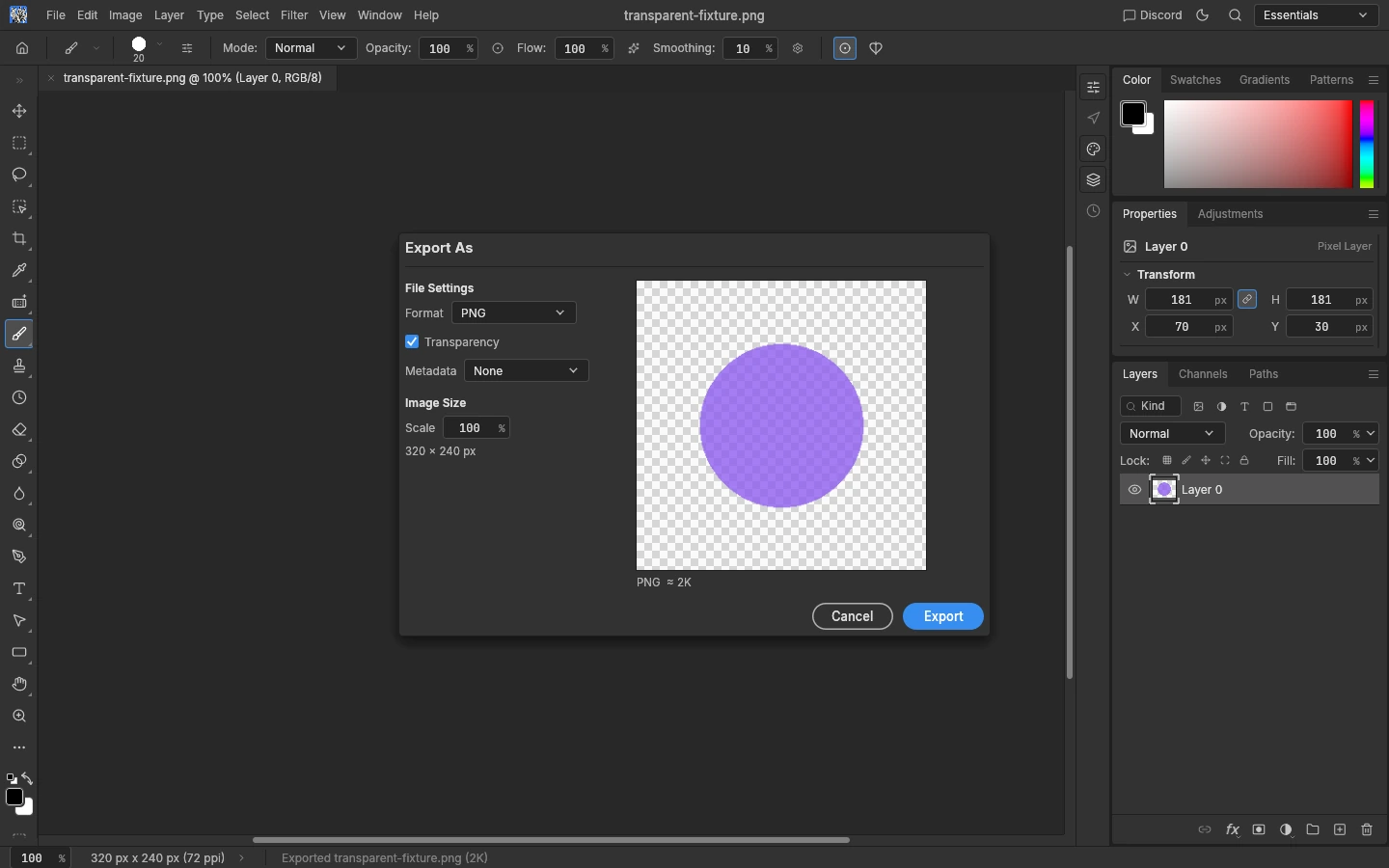
Use Export As when you need format or size controls
Choose File → Export → Export As. The v0.7.0 dialog includes:
- Format: PNG, JPG, WebP, TIFF and TGA are shown in the menu. The first three are common delivery choices; this guide's tested download paths are PNG and JPG.
- Transparency: offered for applicable formats. Keep it enabled for a PNG when transparent pixels must remain transparent.
- Quality: shown for formats where a quality setting applies. For JPG, inspect the final result as well as its file size.
- Metadata: None or All. Choose deliberately rather than assuming metadata will be stripped or retained in every workflow.
- Scale: a percentage, with the resulting output pixel dimensions shown below. This is not a pair of editable width/height fields.
For a JPG, choose JPG in Format and then Export. The browser downloads the image. JPG cannot store an alpha channel, so examine areas that were transparent before export and make sure their appearance is suitable for the intended use.
For an exact change to the editable document's dimensions, use Image → Image Size instead. Export scaling changes the output copy without being the same operation as resizing the working document.
Save editable layers separately
In the Web build we tested, File → Save As directly downloaded a PSD using the document's suggested name. It did not open a desktop format-and-folder dialog.
We saved a simple RGB document with two image layers and reopened the resulting PSD in PhotoCraft. That is a narrow working-file check, not verification of a complete Photoshop round trip. Keep your original and compare the result in the application that will receive it.
Do not use Quick Export as PNG if the only copy you keep needs editable layers. PNG preserves the rendered picture and supported transparency, not the Layers panel's structure.
Find the download and check it before closing
If nothing seems to have happened, look in the browser's Downloads list before repeating the operation. Depending on browser settings, you may get a notification, a save prompt, or a file placed in the normal Downloads folder.
Reopen the downloaded picture and check the dimensions and visible content. For a PSD, reopen a copy and check the layers you intend to keep. Use menu commands as the primary route: browser keyboard shortcuts can conflict with editor shortcuts.
PhotoCraft Web has no autosave or crash recovery. Save/export means downloading a file; it is not a cloud backup and does not overwrite your original local file.
Version and source
Applies to PhotoCraft Web v0.7.0. Official references: Web file handling notes, Export As implementation. Formats shown in the menu and formats we tested are intentionally distinguished above.