Open PSD files in PhotoCraft: what to check
Opening a PSD is only the first check. Keep the original, inspect the layers, and treat a saved copy as something to verify—not proof of perfect Photoshop compatibility.
Open a PSD without risking your only copy
Keep the untouched PSD in a separate location. If you have access to the application that created it, keep a reference PNG or JPG of how it should look as well.
On the homepage, wait for the editor to start. Choose Open on the start screen or File → Open, then select the PSD from your device. Wait for the document and its Layers panel to appear.
The Web editor reads the selected file in your browser. It does not edit the file sitting on your disk in place. A later save creates a new download, which you should compare before replacing anything.
Inspect the rendered picture and the layers separately
A document can look plausible while parts of its editable structure behave differently. Check both the canvas and the Layers panel.
Look for the expected layer names, ordering and visibility. If transparency matters, inspect the edges and transparent areas rather than only the center of the picture. Toggle a layer's visibility to understand what it contributes, then restore it before saving.
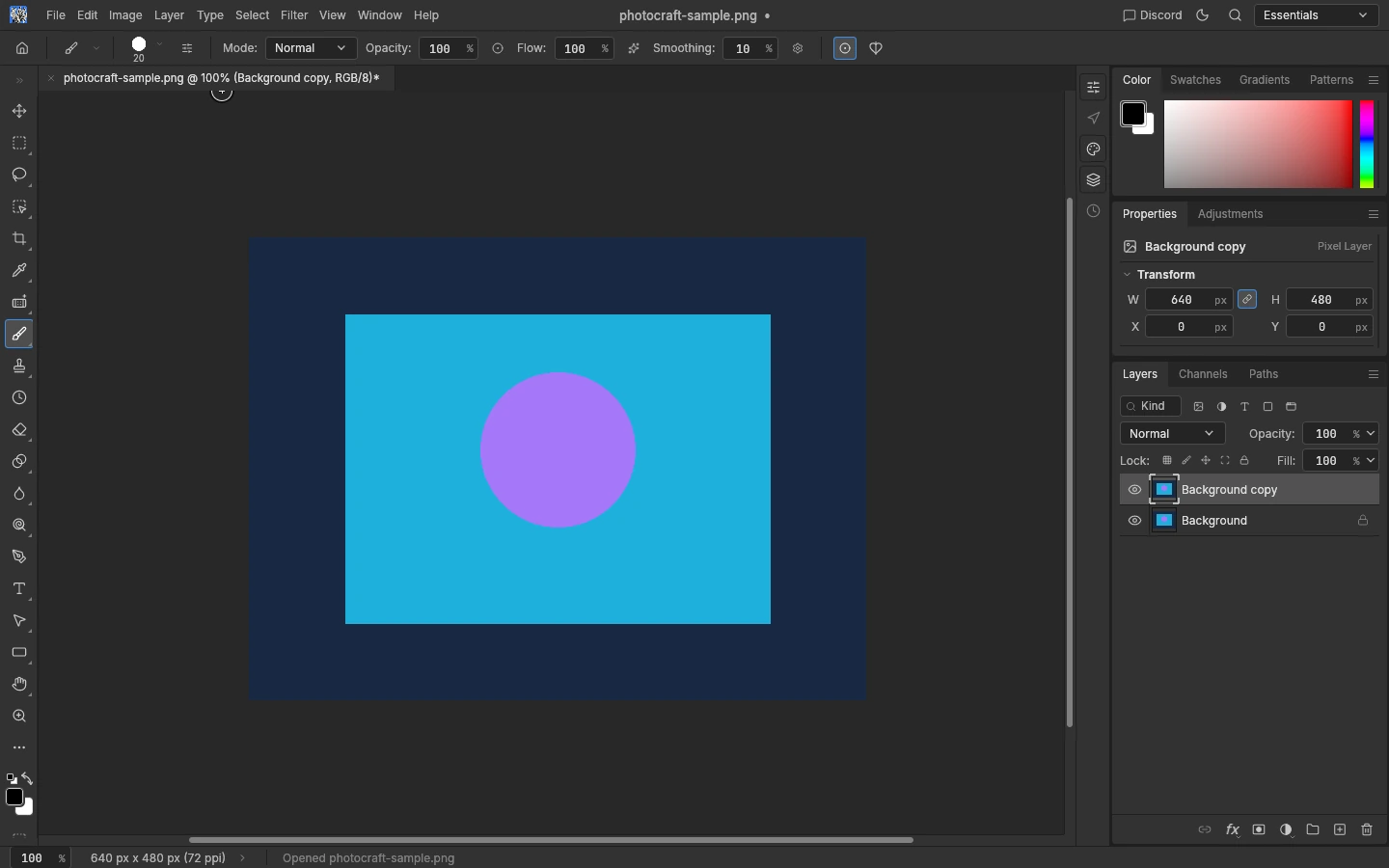
For a simple edit, work on a copy of the relevant layer. Layer → Duplicate Layer creates a duplicate in the tested browser workflow. Do not flatten a file just to make the canvas look simpler if you still need editable layers afterward.
If the visible picture already differs from your reference before you make any edits, stop and keep the original. Saving cannot be assumed to fix an import difference.
What our simple browser test covers
We opened a small RGB image, duplicated its image layer, downloaded a PSD through File → Save As, and reopened that PSD in PhotoCraft. The saved file contained two layers.
This confirms a basic browser path for a small image-layer document. It does not validate text editing, adjustment layers, smart objects, smart filters, complex masks, CMYK work, large production documents, or reopening the download in Adobe Photoshop.
Photoshop reopening was not tested. A successful save in PhotoCraft is not evidence that a client, printer or colleague using another application will receive an identical editable file.
The compatibility risks that deserve a closer look
PhotoCraft v0.7.0 is early alpha. Its official README describes PSD support and results from specific test corpora, but those results are not a universal Web compatibility percentage.
- Fonts and text: the browser does not automatically get all of your installed system fonts. The official Web notes describe bundled fonts and optional host-provided fonts. Check line breaks, font substitution and text appearance before and after editing.
- Adjustments, effects and smart features: opening a file does not prove that every Photoshop feature is editable or rendered identically. Keep a reference and check the features your document actually uses.
- Color and bit depth: upstream reports include color differences in particular CMYK/high-bit-depth workflows. Those reports are not browser reproductions, but they are a reason not to assume a simple RGB test covers every mode.
- Round trips: an imported PSD, an exported PSD and a PSD reopened in Photoshop are separate checks. Do not collapse them into a single “supports PSD” claim.
For concrete upstream examples, see the reports about a v0.7.0 CLI font-name round trip and a CMYK flattening color difference. They concern the environments described in those reports, not a claim that we reproduced the same issue on this site.
Save a copy and verify the receiving workflow
Use File → Save As to download a PSD in the tested Web build. Keep that download separate from your original. Reopen it in PhotoCraft to check the basic structure, then open it in the application that will actually receive the work if interoperability matters.
If you only need a finished picture, export a PNG or JPG and compare it with your reference. A flattened image may be a suitable deliverable, but it is not a replacement for an editable PSD when the recipient needs layers.
Use PhotoCraft on a copy before trusting it with a production document. Keep a verified saved file outside the tab: the Web build has no autosave or crash recovery.
Version and source
Applies to PhotoCraft Web v0.7.0. Read the official release README and Web-specific limitations. This guide is a compatibility checklist, not a promise of lossless Photoshop replacement.