Crop and resize an image in PhotoCraft
A tighter composition and a smaller file are different edits. Here is how to change each one without confusing image size, canvas size and zoom.
Pick the operation that matches your goal
Crop changes which part of the picture remains in the frame. Use it to remove empty space or tighten the composition.
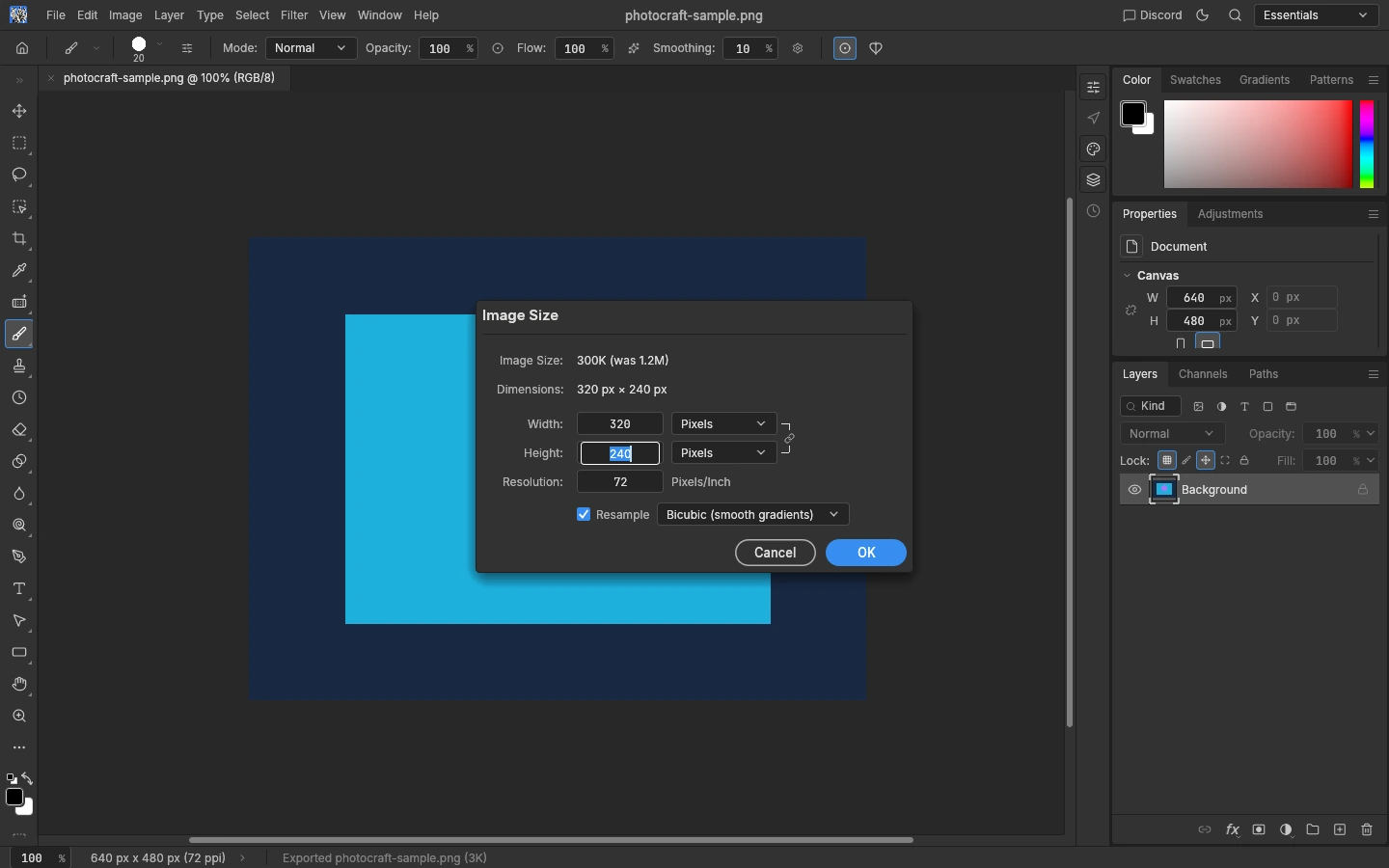
Image Size changes the pixel dimensions of the whole image. Use it when a 640 × 480 image needs to become 320 × 240, for example.
Canvas Size changes the document boundary. It is not the same as scaling all of the picture's pixels.
Zoom only changes the view inside the editor. Setting the view to 50% does not create an image with half as many pixels.
If you need both a tighter crop and a particular output size, crop first and then resize the result. Otherwise, a crop after resizing changes the final dimensions again.
Resize the whole image with Image Size
- Open your picture in the homepage editor.
- Choose Image → Image Size.
- Check that the width and height units are Pixels when you have a pixel-based target.
- Keep the width and height linked if you want to preserve the image's proportions.
- Enter the new Width or Height. With the link active, the other dimension follows.
- Keep Resample enabled when the goal is to change the number of pixels. Choose OK to apply.
For our browser check, the source was 640 × 480 pixels. Entering a linked width of 320 produced a 320 × 240 PNG after export. The result was checked from the downloaded file, not just the numbers on the canvas.
The dialog also has a Resolution field. For a web image with a specific pixel target, width and height are the important output values. Changing a pixels-per-inch number alone is not a substitute for checking the actual dimensions.
Avoid enlarging a small source and expecting new fine detail to appear. Resampling adds pixels; it cannot recover detail that was never in the source image.
Crop the composition
- Select the Crop tool from the left toolbar. A crop frame appears over the image.
- Drag the frame's corner or edge handles inward to choose what remains. Work from the handles rather than assuming a drag through the middle creates a new selection.
- Check the visible area before applying it. The parts outside the crop frame are not part of the final composition.
- With the editor focused, press Enter to commit the crop. Press Esc if you want to cancel instead.
- If the committed crop is not what you wanted, choose Edit → Undo before continuing.
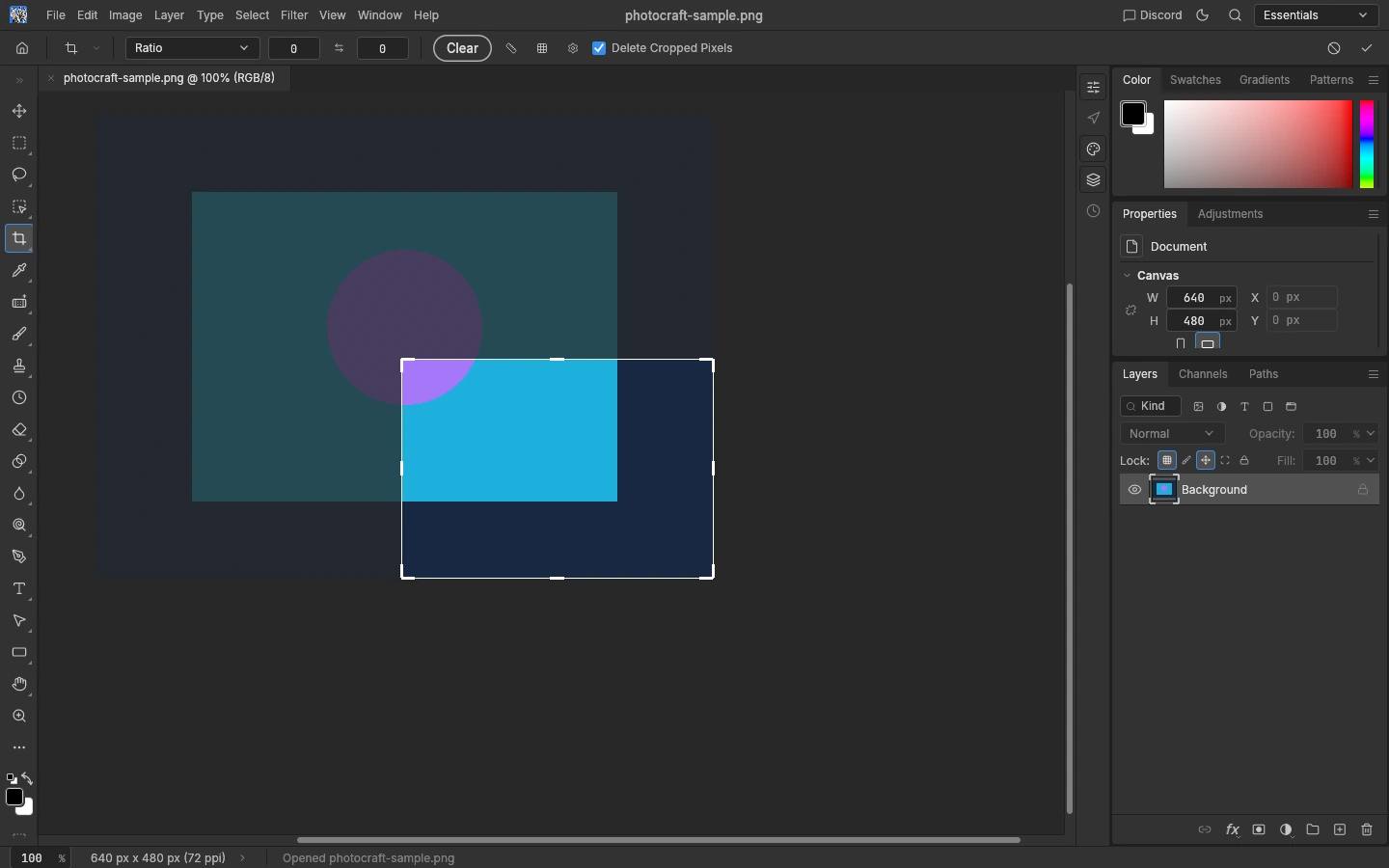
The toolbar includes additional crop controls, but you do not need to learn them for a basic tighter frame. Keep an untouched original rather than treating any crop workflow as a guaranteed recovery method.
We committed a crop in the Web editor and confirmed that the downloaded image had changed dimensions. This verifies the basic crop path; it does not establish pixel-for-pixel parity with every Photoshop crop mode.
Check the downloaded image, not just the canvas
Choose File → Export → Quick Export as PNG. Open the download and inspect its dimensions using your device's image information or properties view.
If the output is still the old size, check whether you changed Zoom rather than Image Size, or whether the crop was still waiting to be committed. If the picture looks stretched, check the width/height link and undo the resize before trying again.
PhotoCraft's Export As dialog also has percentage scaling for the exported copy. That is useful when you want a smaller deliverable without resizing the working document. It is a separate control from Image Size; see save and export.
Download before closing the page. Web autosave and crash recovery are not available, so a finished edit left only in the tab is not a saved file.
Version and source
Applies to PhotoCraft Web v0.7.0. The steps above were exercised in the browser with a small RGB image. For the upstream implementation, see the menu definitions and crop tool behavior.